How to Export Bookmarks from Chrome, Firefox, Safari and Edge
Every major browser can save your bookmarks to a single HTML file. That file is how you move bookmarks to another browser, another computer or a bookmark manager, and it doubles as a backup that you control.
The steps below were checked in November 2026. Menu names change from time to time, so if something has moved, look for the word "export" in the browser's bookmark manager.
Chrome
- Click the three-dot menu at the top right of Chrome
- Go to Bookmarks and lists, then Bookmark Manager
- In the Bookmark Manager, click the three-dot menu at the top
- Choose Export bookmarks and save the file
Google documents the export for Chrome on a computer only. If your bookmarks are on your phone, sign in to Chrome with the same Google account on a computer, let them sync, and export from there.
Firefox
- Click the menu button, then Bookmarks, then Manage bookmarks at the bottom of the list
- In the Library window, click Import and Backup
- Choose Export Bookmarks to HTML and save the file. Firefox names it bookmarks.html
The same menu has a Backup option. A backup is a JSON file that only Firefox can restore, so choose the HTML export if the bookmarks are going anywhere else. The same goes for Firefox on a phone: Mozilla's instructions are to set up Firefox Sync and export from a computer.
Safari
In Safari 18.2 and later:
- Choose File, then Export Browsing Data to File
- Select Bookmarks, and deselect anything you don't want in the export
- Click Download, choose a location and save
Safari saves a .zip file. Unzip it and the bookmarks are inside as Bookmarks.html. Apple warns that the export isn't encrypted, so if you included passwords or history, delete the file when you've finished with it.
Older versions of Safari have a shorter route: File, Export, Bookmarks, which saves a single HTML file.
Microsoft Edge
- Press Ctrl+Shift+O (Cmd+Shift+O on a Mac) to open Favorites
- Click the three-dot menu at the top of the Favorites page
- Choose Export favorites and save the HTML file
What is in the file
The export is a web page. Open it in a browser and you'll see your bookmarks as a list of links under their folder names. It holds each bookmark's title, its address and the folder it was in. It doesn't hold the pages themselves, your passwords or your history.
Because it's plain HTML in a long-established format, almost anything that handles bookmarks can read it, whichever browser wrote it.
What to do with it
Move to another browser
Every browser has an import option close to its export option. In Chrome it's the three-dot menu, Bookmarks and lists, Import bookmarks and settings. Chrome puts imported bookmarks on the bookmarks bar if it had none, and in the Other bookmarks folder if it did.
Keep a backup
Sync keeps your devices the same, which means a bookmark deleted on one is deleted on all of them, and Chrome's help page says a deleted bookmark can't be recovered. A file you exported last month still has it. Save a fresh copy before any big clean-up, such as removing duplicates.
Import into a bookmark manager
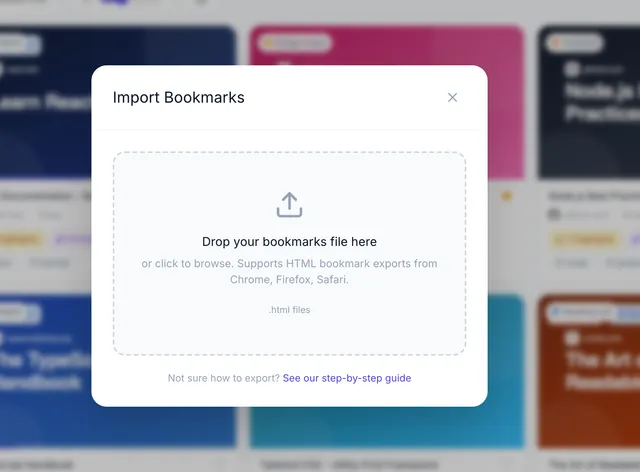
In Bookmarkme, click Import at the bottom of the sidebar, drop the HTML file in and choose a collection. The import guide shows each step. Two things to know beforehand: the links arrive in one collection, without their old folders, and on the Free plan an import stops at 500 bookmarks. Once they're in, you can sort them with collections and tags.