How to Find and Remove Duplicate Bookmarks in Chrome
Duplicate bookmarks build up without anyone noticing. You save a page you already saved last year, import a file from an old computer, or sync two devices that each had their own copy. Chrome's bookmark manager can add, edit, move, sort and delete bookmarks, but it has no option for finding duplicates, so the clean-up is manual.
Before you start: export a copy
Chrome's help page says that after you delete a bookmark, you can't get it back. Export your bookmarks to an HTML file first, so that a mistake costs you nothing. It takes a minute, and the steps are here.
Method 1: sort by name
Sorting puts bookmarks with the same title next to each other.
- Click the three-dot menu at the top right of Chrome, then Bookmarks and lists, then Bookmark Manager
- Open a folder
- Click the three-dot menu at the top right of the Bookmark Manager and choose Sort by name
- Scroll through the folder and delete the repeats
This has two limits. The sort works on one folder at a time, so the same page saved in two different folders won't line up. And it sorts by title, so two bookmarks for the same page with different titles stay apart.
Method 2: search for the site
The search box at the top of the Bookmark Manager looks through every folder and matches addresses as well as titles. Type part of an address, such as a domain name, and every bookmark for that site is listed together, whichever folder it's in.
This is the quickest way to check the sites you save from most often: documentation you use every day, a news site, your own company's pages.
What about extensions?
The Chrome Web Store has extensions that find duplicate bookmarks. They need permission to read and change all your bookmarks, so check who publishes one, how many people use it and when it was last updated before you install it. Export a copy first here too.
If you use Microsoft Edge
Edge has this built in. Open Favorites with Ctrl+Shift+O, click the three-dot menu and choose Remove duplicate favorites. People on Microsoft's support forum report that it can miss some, such as the same site saved under different subdomains, so look through the result afterwards.
Stopping new duplicates
A clean-up fixes the duplicates you have today. New ones appear unless something tells you, at the moment you save, that you already have the page.
Bookmarkme does this on the Pro plan. When you add a link you've already saved, it shows a warning with the collection it's in and the title you gave it. The check ignores the differences that usually hide a duplicate: http or https, "www", a trailing slash and the order of the parameters in the address.
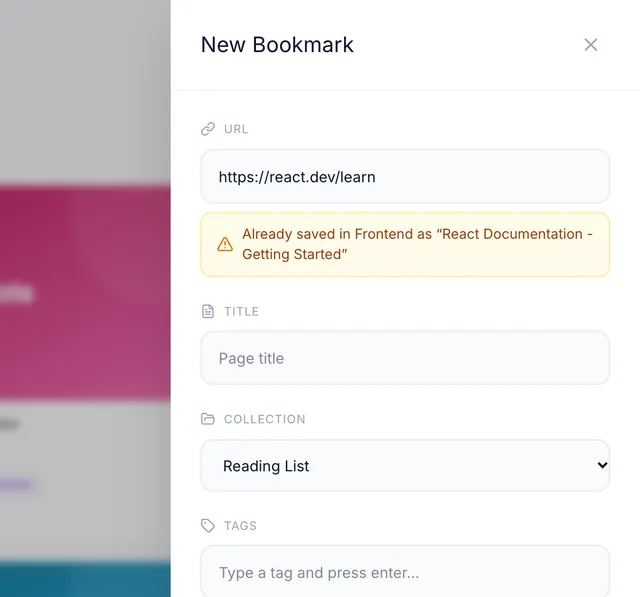
It is a warning at the time you save. It doesn't go through the bookmarks you already have, and an import brings in every link in the file. If you're moving over from Chrome, remove the duplicates there first, then import the cleaned-up file.