How to Share a Folder of Bookmarks with Someone
Sending someone one link is easy. Sending them thirty, in a sensible order, with some way to tell what each one is, is harder. Chrome, Firefox, Safari and Edge all sync your bookmarks across your own devices. None of them offers a way to send someone else a link to one of your bookmark folders.
These are the options, starting with what the browser itself can do.
Option 1: send the exported file
Every browser can export bookmarks to an HTML file, and you can email that file to someone. They open it in their browser to see the list, or import it to add the bookmarks to their own.
The drawback is that Chrome exports everything. It can't export a single folder, so the other person gets your whole bookmark collection unless you edit the file by hand first. The file is also a snapshot: if you add a link next week, they won't see it.
Option 2: paste the links into a message
Copy the addresses into a chat message, an email or a shared document. That works for five links. With thirty it becomes a long list of addresses with nothing to tell them apart, and it goes out of date in the same way.
Option 3: share a collection with one link
A bookmark manager that stores your bookmarks online can publish a folder as a page. In Bookmarkme a folder is called a collection, and sharing one takes three steps:
- Double-click the collection in the sidebar to open Edit Collection
- Turn on Public sharing
- Click Copy next to the link and send it
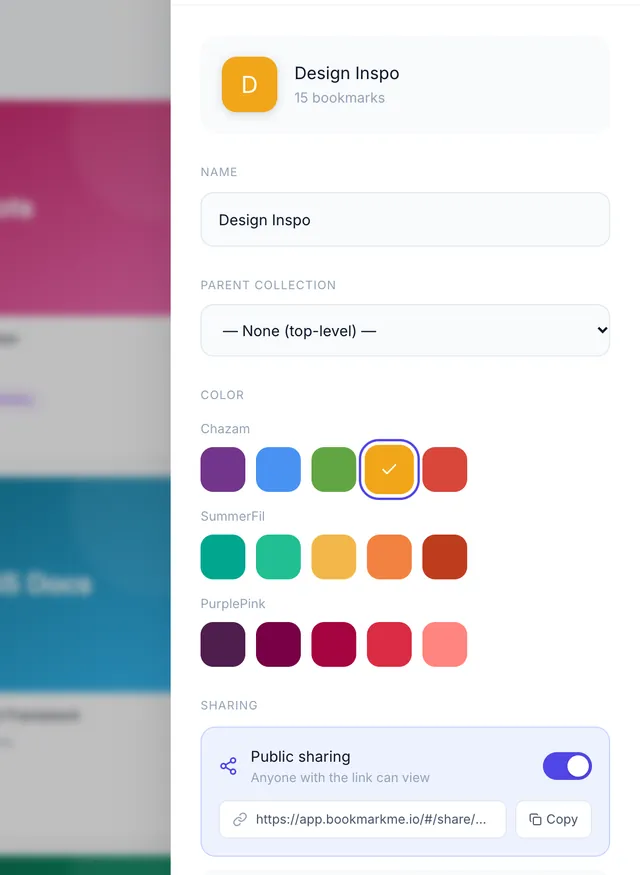
Anyone with the link can open the collection in their browser. They don't need an account or the extension. They see the collection's name, the number of bookmarks and a grid of previews, with a slider for the thumbnail size and an Open all button that opens every link in its own tab.
The page shows the collection as it is now, so bookmarks you add later appear for everyone who has the link.
What the link looks like in a chat
Paste the link into Slack, iMessage or WhatsApp and it turns into a preview card with the collection's name, the number of bookmarks, the first few titles and a screenshot of one of the pages.
Keeping it between a few people
A public link works for anyone who has it. If only certain people should see the collection, turn on Password protect in the same panel and set a password. Visitors are asked for it before they see anything, and the preview card gives the collection's name and nothing else from inside it.
Stopping
Turn Public sharing off and the link stops working. Your bookmarks stay where they were.
Which one to use
For a handful of links you'll send once, paste them into a message. For your whole bookmark collection, or a move to another browser, export the file. For a set of links that someone will come back to, such as reading for a new colleague, sources for a group project or a mood board for a client, a shared collection is the one that stays current.
Sharing is part of Bookmarkme's Free plan. The features page shows the sharing panel.